
World class video background remover (makes green screen background) that works on your desktop or laptop, powered by AI
-
Remove background from video for $5 only, one time fee, life time usage, NO SUBSCRIPTION
-
Make green screen background video
-
Make transparent background for video automatically using AI
Download Free Video Background Remover AI
Buy Pixbim Video Background Remover AI $5 $7
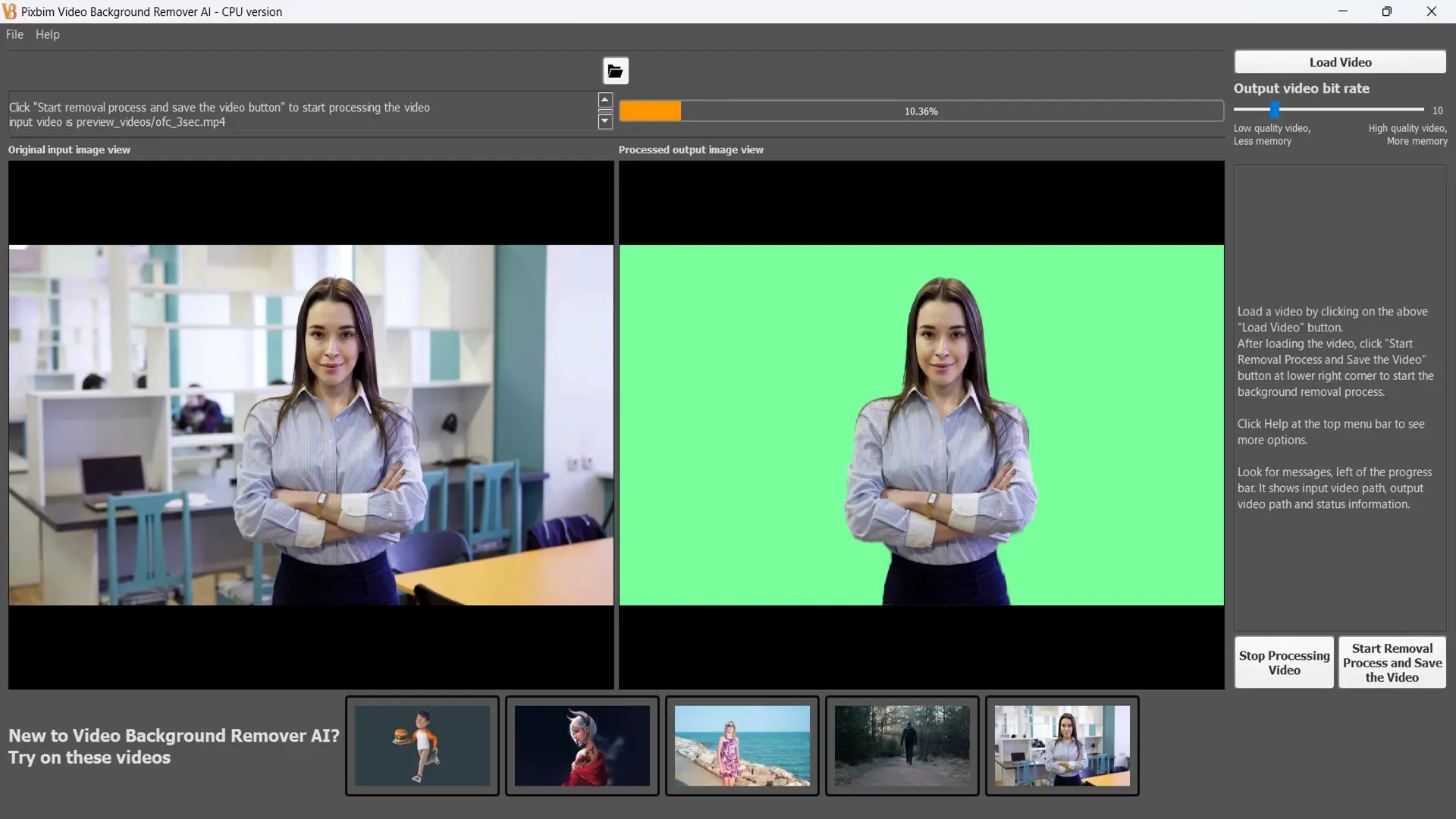
Before (with background - input video) and after (background removed) using Pixbim Video Background Remover AI software
NO SUBSCRIPTIONS. LIFE TIME VALIDITY. UNLIMITED USAGE
Pixbim Video Background Remover AI is a truly unlimited video background removal application, built for creators without recurring costs, no forced cloud dependency, or artificial restrictions. Users can download and install on their desktop/laptop. It is offline, no cloud storage, no restriction, no privacy issues and no subscriptions.
Why Pixbim Video Background Remover AI Is the Best Choice for Removing Video Backgrounds?
Users are not forced into subscriptions, no usage caps such as video duration limits or any other limitations, no cloud-based workflows. It runs locally on your laptop or desktop.
Download Free Video Background Remover AI
WE BUILD SOFTWARE THAT USERS LOVE, THAT GIVES JOY TO OUR CUSTOMERS.
Before and after screenshot in Pixbim Video Background Remover AI
Download Free Video Background Remover AI
Why Pixbim Video Background Remover is the best software to remove background of the video?
1. Pixbim Video Background Remover AI is a truly unlimited video background removal application, built for creators who want full freedom without recurring costs, no forced cloud dependency, or artificial restrictions.
2. Pixbim gives users full control over their workflow, making video background removal simple, affordable, and truly unlimited.
3. There are no duration caps or usage restrictions. Users are not penalized for working on large or complex projects.
4. Unlimited usage allows users to remove backgrounds as many times as needed. Whether processing short clips or long videos, Pixbim does not impose artificial limits.
5. There is no subscription, no usage limits, no restrictions, and no duration limits. You can remove the background of any video you want.
6. Pixbim Video Background Remover AI ensures 100% user data privacy. All processing happens locally on your laptop or desktop, and videos never leave the user’s system.
7. No internet connection is required, making Pixbim reliable in remote or offline environments.
8. Pixbim Video Background Remover AI is compatible with modern hardware, including latest NVIDIA RTX 5000 series GPUs, ensuring seamless performance on the latest systems.
WE DON'T DO SUBSCRIPTIONS (MONTHLY OR YEARLY)
How Pixbim Video Background Remover AI Exceeds User Expectations?
Pixbim Video Background Removal app is designed the way users want software to work—not the way platforms restrict usage. There are no limits, no subscriptions, no forced internet dependency, and no cloud uploads. This customer-first mindset builds long-term trust with creators.
Key features of Pixbim Video background Remover AI -
- Can remove background on unlimited number of videos
- Hassle-free, easy to use
- Your video data is completely processed on your PC, with the privacy you deserve
- An easy-to-use user interface that can run on laptops or desktop systems
Unlike traditional editing software that requires manual masking or frame-by-frame corrections, Pixbim uses AI Video Background Remover to automatically detect the subject and separate it from the background accurately. This means creators can record videos anywhere—at home, in an office, outdoors, or even while traveling—and still produce clean, distraction-free visuals. There is no need for expensive green screens, special lighting, or studio environments.
Videos are processed locally on the user’s machine, which ensures better privacy, and complete ownership of the content. Users simply load their video, let Pixbim Video Background Remover AI process it, and save the result. The experience is smooth, straightforward, and designed to save time.
Download Free Video Background Remover AI
How to Remove Video Background using Pixbim Video Background AI?
Below are the steps on how to remove background from a video.
Step 1: Download Pixbim Video Background Remover AI
Begin by downloading and installing Pixbim Video Background Remover AI on your laptop or desktop computer.
Download Free Video Background Remover AI
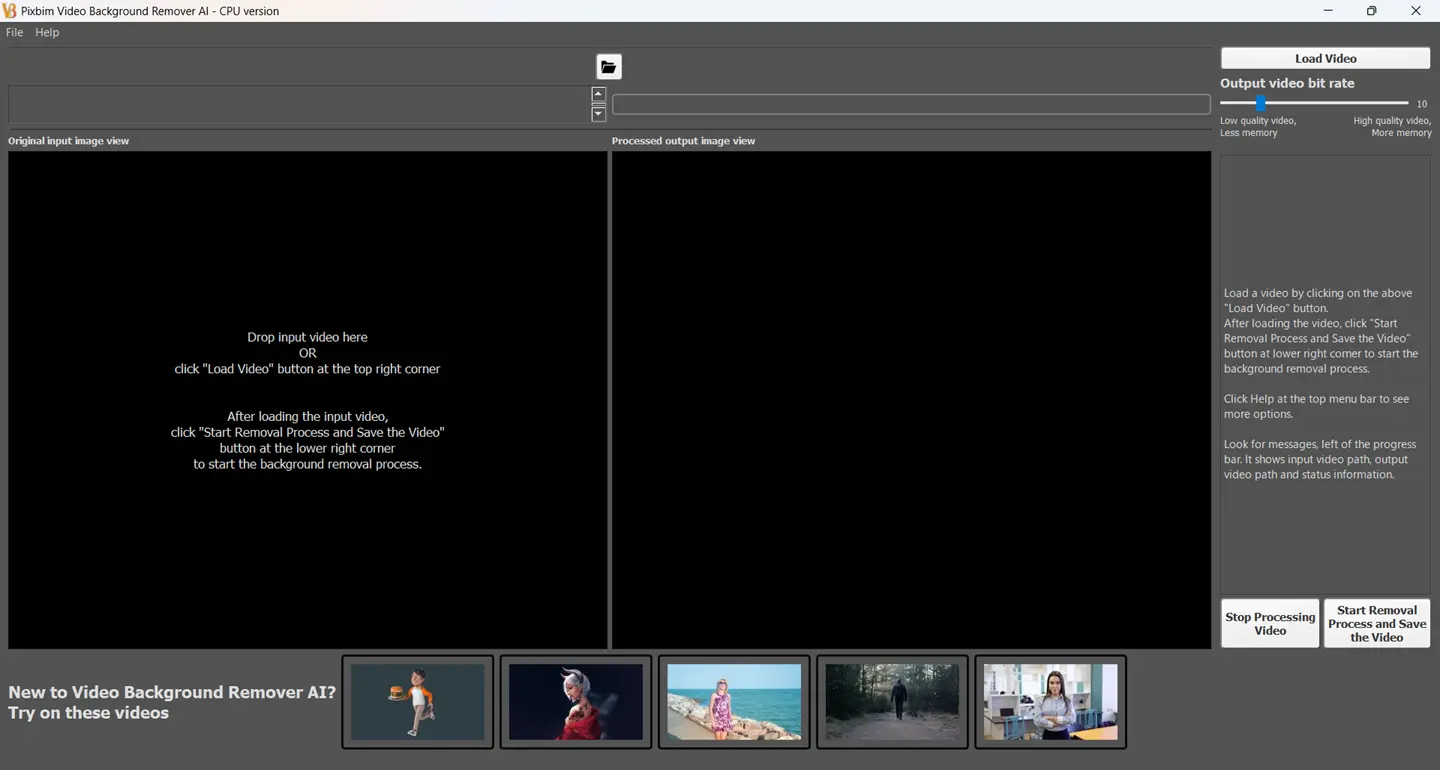
Step 2: Load the Input Video
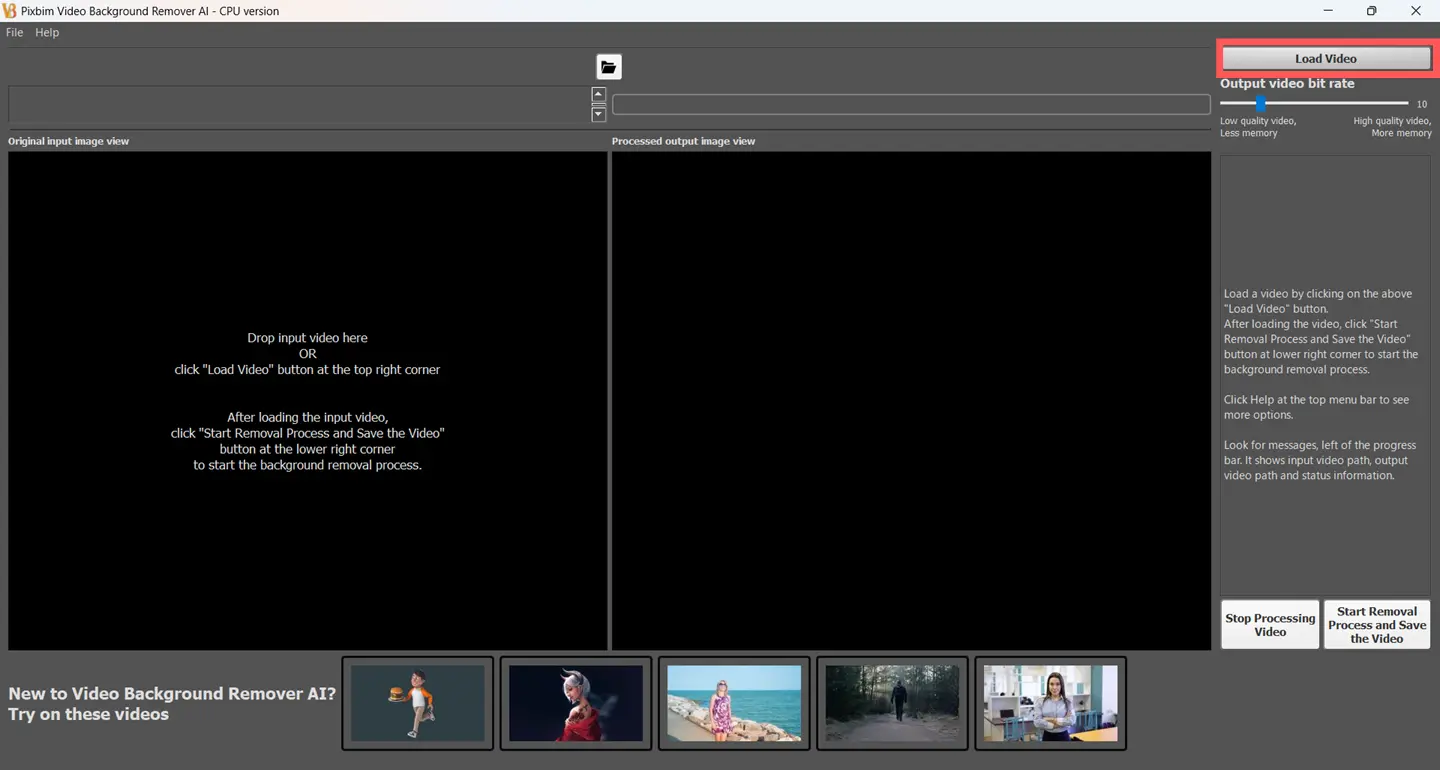
After installing, load the input video by clicking the 'Load Video' button and selecting the video from your laptop or desktop.
Step 3: Start the Video Background Removal Process
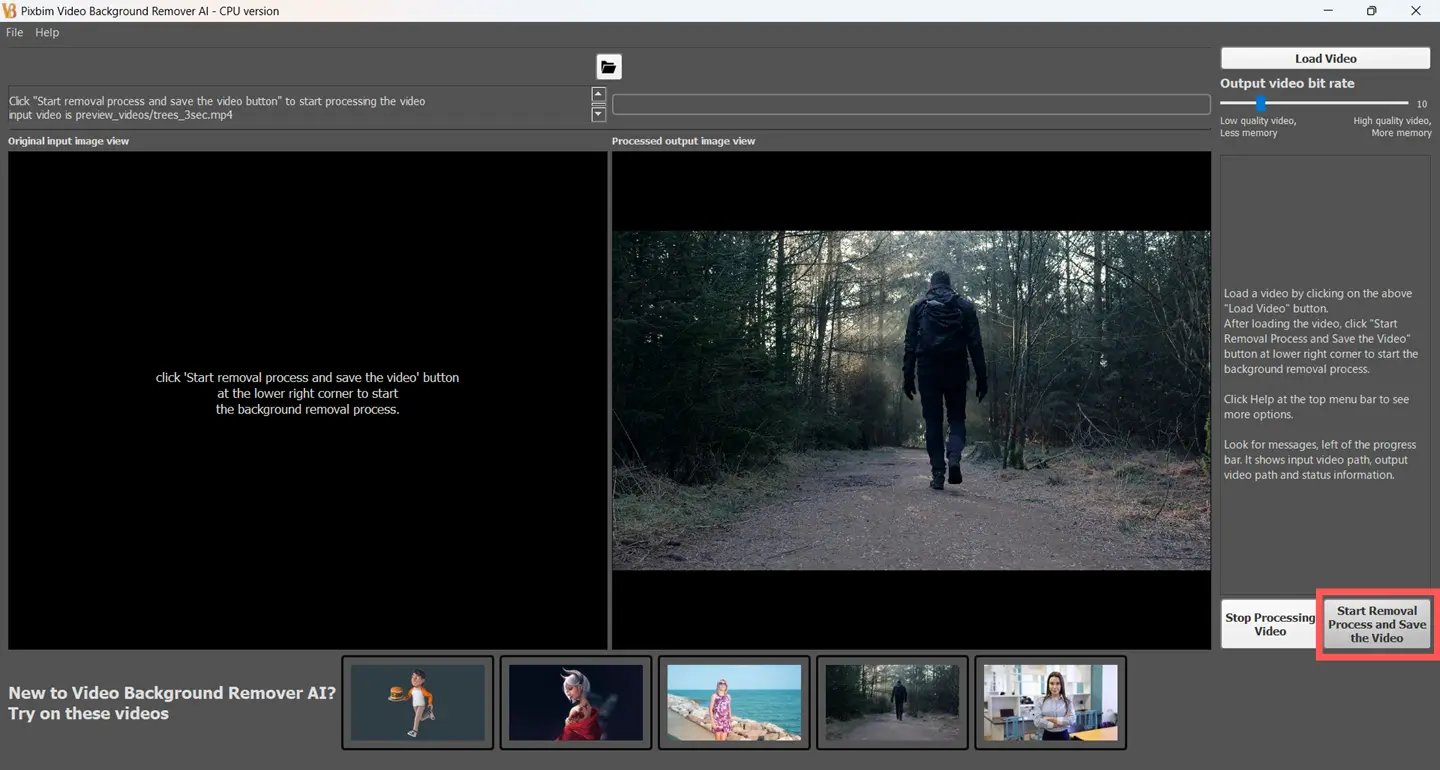
After loading the input video, start the background removal process by clicking the 'Start Removal Process and Save the Video' button as shown above. You will be prompted to choose a location to save the generated output video. Once you select the folder to save the video, the background removal process will begin.
Step 4: Access the Output
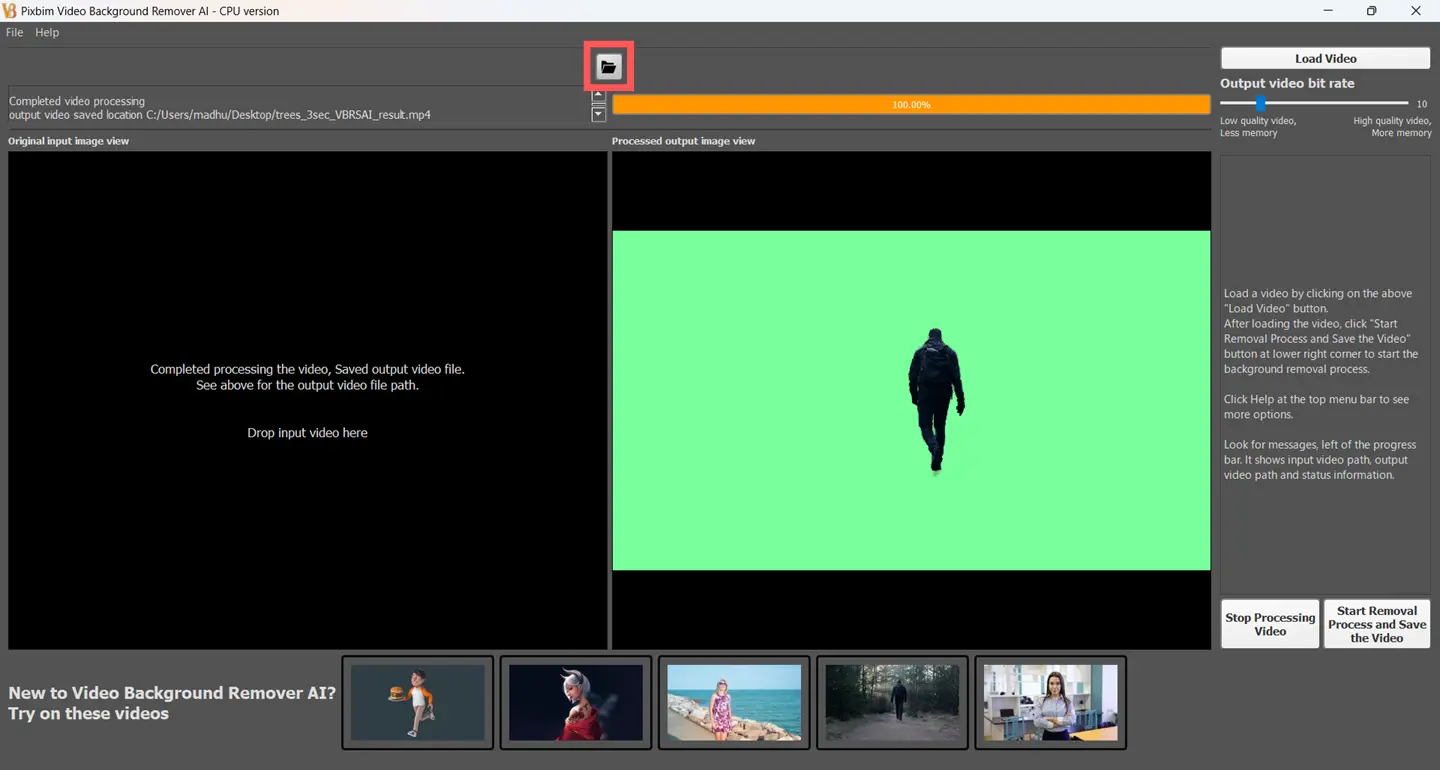
Once the progress bar reaches 100%, the video background removal process is complete. You can directly access the output by clicking the folder icon, it will open the folder location of the saved output video files.
Download Free Video Background Remover AI
Free Download Video Background Remover AI
The current version is 1.0, If you see form submission issues or cannot view the download links after entering email then click "QUICK HELP" in the menu bar at the top of this page and select 'Download Pixbim Video Watermark Remover AI', you can access direct download links
Frequently Asked Questions (FAQs)
1. Why Green screen is better than removing background?
Green screens provide, clean, precise, and consistent subject separation, crucial for high-quality production. Green screens eliminate issues with disappearing limbs, hair, or objects, while allowing for professional, complex lighting, easy, reliable, and uniform background replacement.
2. What are the benefits of using a green screen?
The green screen background allows the filmmaker to layer any background with the subject being filmed or photographed. The subject is filmed against the green background, which is replaced in post-production by a digitally generated background.
3. What's the best video background remover?
Pixbim Video Background AI is the best software to remove background of any video. It helps users to remove any background with high accuracy using AI. Users can remove any background of the video and replace it with green screen for any number of times. It is unlimited and there is no restriction on video duration or the video file size.
4. How do I remove the background of a video?
You can remove background of a video using AI video background removal apps like Pixbim Video background Remover AI. It uses intelligent AI model to remove the video background without any hurdles like in conventional softwares.
6. Which background is best for video?
It depends on the nature of the video. For instance, if you are an educator who wants to make a narration and then the background needs to be relevant to the subject. You can remove and replace the background with greenscreen using Pixbim Video Background Remover AI and then add the background without any hurdles.
7. What is the best AI video background remover?
Pixbim Video Background Remover AI is the best software to remove background of any video without any compromise in losing the quality. It uses AI model that can effortlessly remove and replace the video background with greenscreen. It is unlimited and there are no limits or restrictions.
8. I want to use Pixbim Video Background Remover AI? How to use it?
Pixbim Video Background Remover AI is the very user friendly tool to remove background of the video. Download and install the software on your laptop/desktop. Just load the video into the installed software and start the background removal process. That’s it. The AI model can remove background like a pro.
9. How to make your video background green?
Download and install Pixbim Video Background Remover AI and load your video to replace the background with greenscreen. Start the background removal process and get the output video with green screen background saved on your laptop or desktop.
10. What is the best software for green screen?
Pixbim Video Background Remover AI is the best software to remove the background of any video and it replaces with green screen. If you have a input video running for a long duration with big file size, Pixbim video background remover is the ideal software as it is free.
11. How accurate are background removers?
Now-a-days AI background removers are smart and accurate, it can distinguish the subject effortlessly and remove the backgrounds. It is more accurate and reliable than conventional method.
Download Free Video Background Remover AI
Who Can Use Pixbim Video Background Remover AI?
Video Editors
Imagine a video editor working on a commercial project or a short film that includes 100 small scenes. Each scene may require a different background depending on the narrative or branding requirement. Using subscription-based tools would mean constant credit consumption, repeated payments, or strict limits on video duration. With Pixbim Video Background Remover AI, the editor can remove and replace backgrounds across all scenes freely, without worrying about limits or costs. This allows editors to focus entirely on creativity and storytelling rather than managing software restrictions. Pixbim becomes a dependable part of their daily workflow.
YouTubers
A YouTuber recording videos from home may not always have a clean or consistent background. One day it’s a bedroom, the next day it’s a different room, and the visual inconsistency affects channel quality. With Pixbim, the YouTuber can remove the background from every video and replace it with a consistent studio-style look. Over time, this helps build a recognizable visual identity. Since Pixbim allows unlimited usage, creators can apply this to every video without worrying about costs.
Content Creators
Social media creators often repurpose the same video for multiple platforms. A single video might be used for Instagram Reels, YouTube Shorts, Facebook Ads, and promotional campaigns. Pixbim Video Background Remover AI allows creators to keep the subject the same while changing the background for each platform. This saves time, avoids re-recording, and helps tailor content for different audiences. Creators can experiment freely because there are no usage caps limiting creativity.
Influencers
Influencers rely heavily on visual branding. Whether it’s fashion, tech, fitness, or lifestyle content, maintaining a consistent look is important. Pixbim Video Background Remover AI enables influencers to remove backgrounds and replace them with branded visuals, themed environments, or campaign-specific designs. This makes content look more polished and professional. Since Pixbim works offline and offers unlimited usage, influencers can edit content anytime without depending on internet availability or monthly subscriptions.
Educators & Trainers
Teachers and trainers creating online lessons often record videos from homes or classrooms that may contain distractions. Pixbim Video Background Remover AI allows them to remove messy or distracting backgrounds and replace them with clean, neutral, or educational visuals. This helps students focus better on the lesson. Educators can also reuse the same video with different backgrounds for different courses.
E-commerce Sellers
E-commerce sellers frequently need multiple promotional videos for the same product. A single product video might need a white studio background, a lifestyle scene, and a festive promotional backdrop. Pixbim Video Background Remover AI allows sellers to reuse the same footage and change backgrounds quickly. This reduces production costs and speeds up content creation. Since there are no limits, sellers can generate as many variations as needed for different platforms and campaigns.
Marketing Teams
Marketing teams often create multiple ad variations to test performance across platforms. Pixbim Video Background Remover AI allows teams to change backgrounds while keeping the main video content intact. This helps adapt visuals for different audiences, regions, or seasonal campaigns. The absence of subscriptions and usage limits makes Pixbim ideal for continuous marketing workflows. Teams can iterate freely without worrying about exceeding platform limits.
Corporate Professionals
Corporate users often record presentations, training videos, or internal communications. Recording environments are not always ideal, especially in remote work setups. Pixbim Video Background Remover AI allows professionals to remove background clutter and replace it with clean, corporate-friendly visuals. This enhances credibility and professionalism without requiring studio equipment or technical expertise.
Video Amateurs & Hobbyists
Not everyone using video editing tools is a professional. Hobbyists creating family videos, travel memories, or fun social clips often want simple tools that just work. Pixbim’s user-friendly design makes it easy for beginners to remove backgrounds without confusion. There is no learning curve, making it enjoyable rather than intimidating.
Remote Workers & Freelancers
Freelancers working from different locations often face inconsistent backgrounds. Pixbim works fully offline, allowing freelancers to edit videos anytime. Whether it’s client presentations, promotional videos, or portfolio content, Pixbim provides a reliable solution that doesn’t depend on cloud services or subscriptions.