How to Remove any Video Background and Make a Green Screen on Video Using Pixbim Video Background Remover AI?
WE DON'T DO SUBSCRIPTIONS (YEARLY OR MONTHLY)
There are days when you want to make a presentation or speak about anything. You will go for a background that is visually appealing. Imagine you are explaining about the animal kingdom, speaking about each animal. Going there and explaining is a thrill, but is it possible and cost-effective? Think about this: you have a YouTube channel where you explain the making of your own pastries to your audience, and your background is so hectic and dirty.
The audience needs attention, and they should feel like they are immersed in the subject and live with it. It is in our hands that everything which we say, explain, or present needs to be appealing. Imagine you are an educator who explains concepts about the chemistry periodic table. What else would be good, if not the periodic table as the background?
ONE TIME FEE. UNLIMITED USAGE. LIFE TIME VALIDITY
The background of the video always matters. Many professionals have in-house studios where they shoot the scenes with a green screen behind them which is a green screen on video, and then they remove the green screen and add their required background. However, it is costly, and only a few can afford it.
As time evolved, there were many background video remover apps that work on AI models smart enough to remove the background from the subjects. The background of the video is removed using the app and can be turned into a green screen. From the green screen background video, you can turn it into a lossless video with your required background.
100% DATA PRIVACY. NO CLOUD SERVERS.
The AI background removal process makes it smart and accurate. But wait, what is the cost of removing the video background? All the video background remover apps charge prices based on per-minute removal. What if I say there is a video background remover that is the most affordable application in the world, where you can remove the background an unlimited number of times and for any duration, and it offers lifetime validity? Yes, Pixbim Video Background Remover AI is the best app that can remove video backgrounds for infinite number of times, and there are no monthly or yearly subscriptions.
Pixbim Video Background Remover AI can remove the background of the video and make it a green screen. A green screen background is the most effective method. You can change from the green screen background to any background using video editing application.
How to Remove Video Background and Make a Green Screen using Pixbim Video Background Remover AI?
Below are the steps to make background of the video green screen-
Step 1: Download Pixbim Video Background Remover AI
Download Free Video Background Remover AI
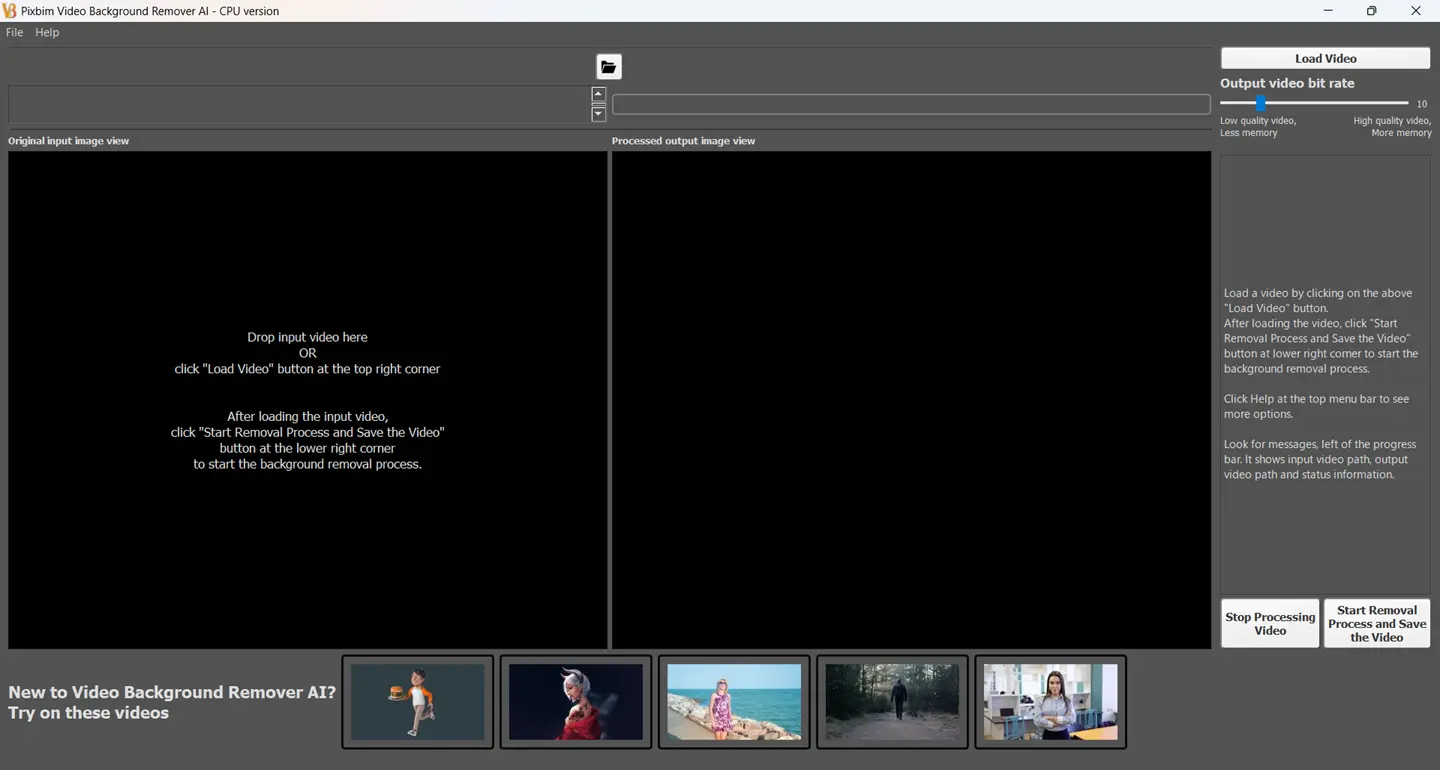
Download and install Pixbim Video Background Remover AI on your desktop/laptop. There are two versions: CPU and GPU. If you have an NVIDIA GPU, then download and install the GPU version (GPU version is much faster but needs Nvidia GPU to run, without Nvidia GPU it will not run), or you can download and install the CPU version of Pixbim Video Background Remover AI, which works universally on all Windows OS.
Step 2: Load the Input Video
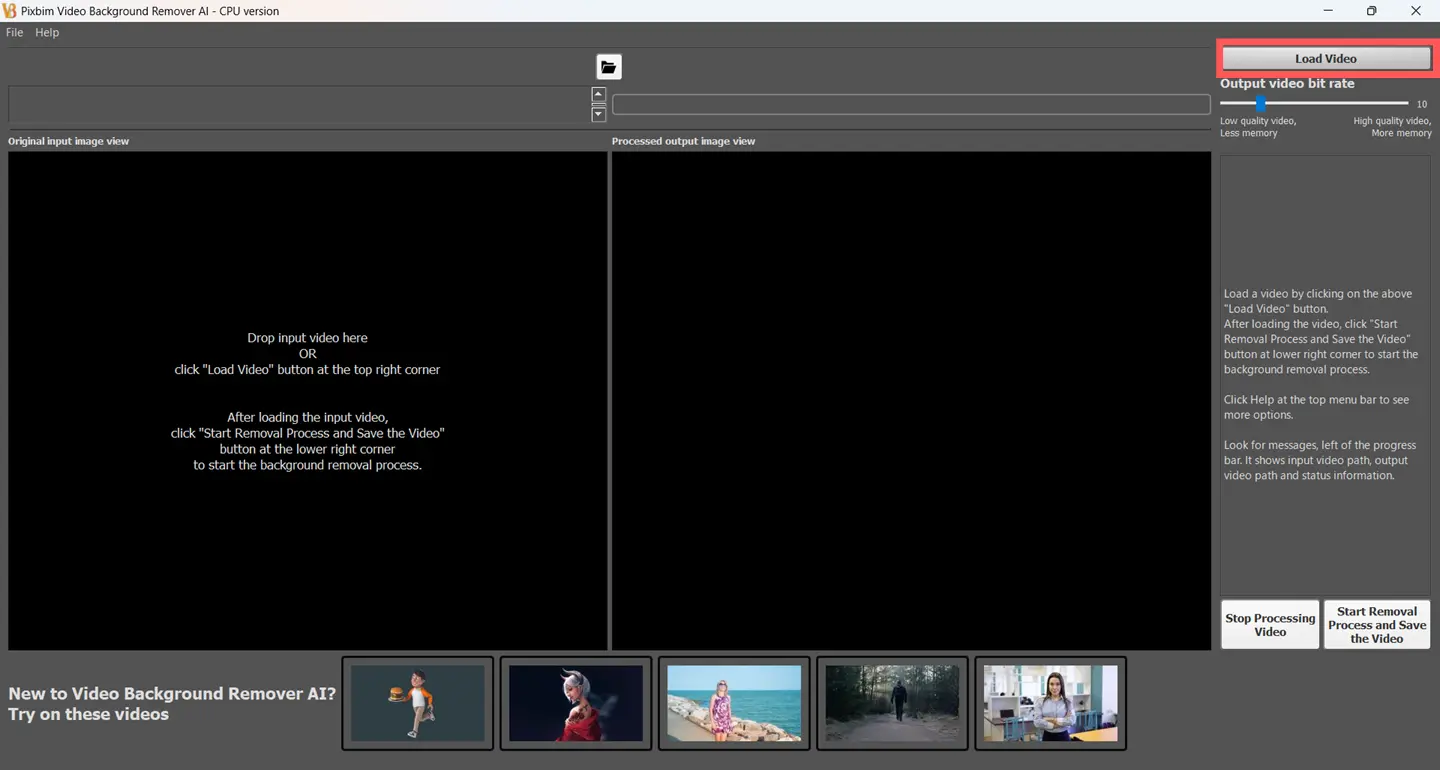
After installing, Open the software and load the input video you want to remove background and make it transparent. Click the ‘Load Video’ button, through which you can select the input video.
Note (for quick testing) -
If you want to try our video background remover quickly, we have provided sample videos where you can test it quickly and then test it on your videos.
Step 3: Adjust the Output Bit Rate (Optional)
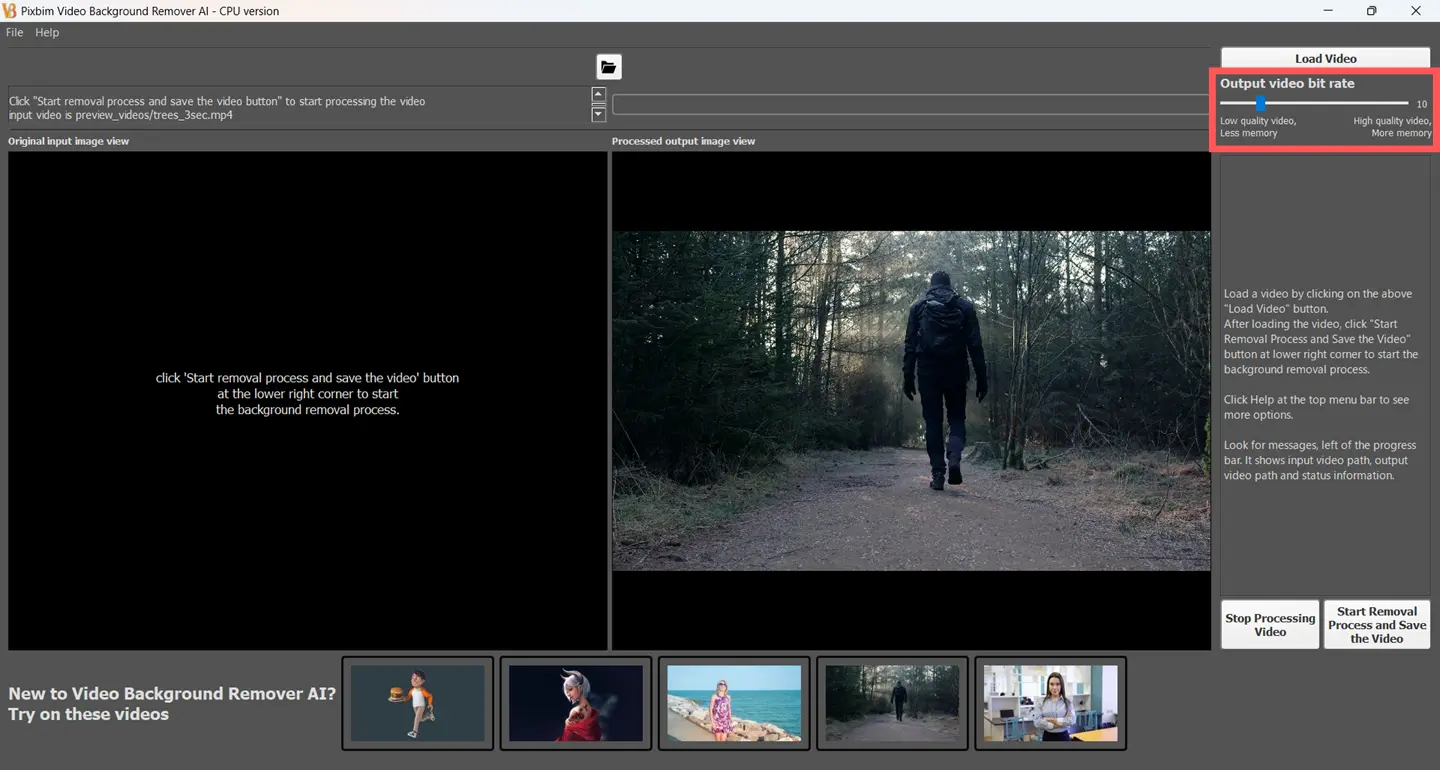
You can leave the output video bit rate at the default value if you are testing the video samples. If you need a very high-quality output video, you can change the output bit rate to higher value for high-quality video output. The values of the output bit rate can be changed using the 'Output bit rate' slider. You can move the slider from left to right for higher output bit rate values, that will result in a high-quality output video.
Step 4: Start the Video Background Removal Process
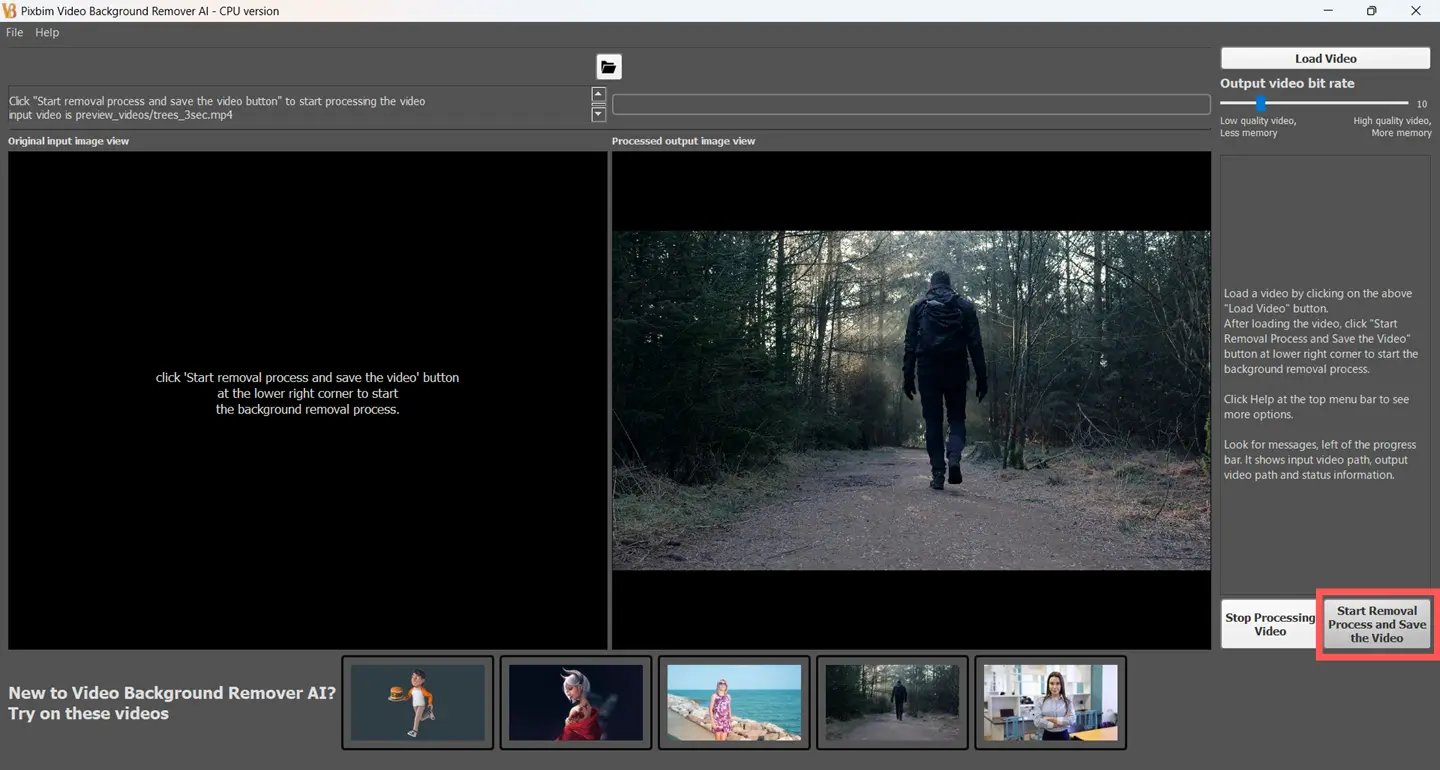
Click the 'Start Removal Process and Save the Video’ button. This will ask you to save the output before starting the video background removal process. You can rename it and save it in the required location on your system.
On the left-side, you can see the input video frames, and on the right-side, you can see the background removed output frames with a green screen background.
Step 5: Access the Output Video
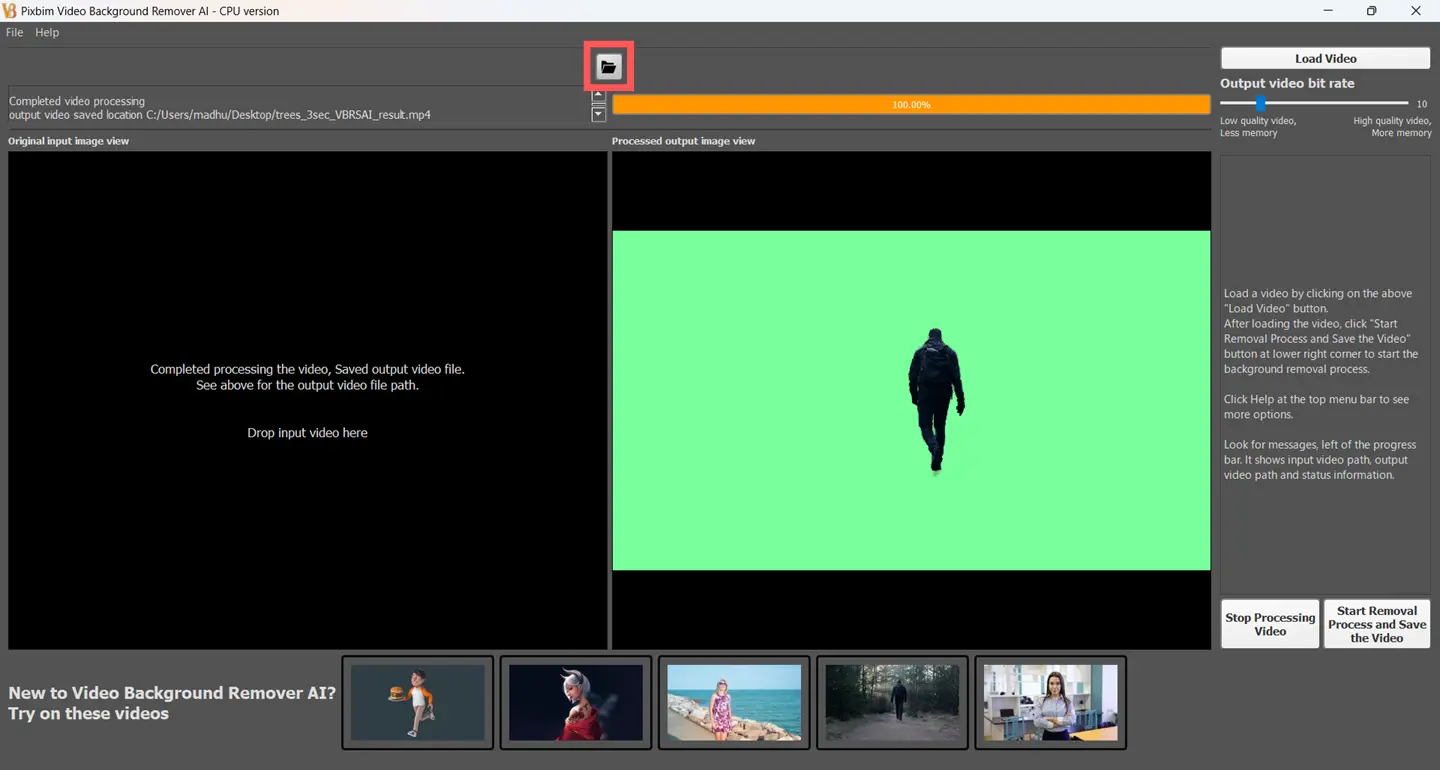
Now, once the progress bar reaches 100%, you can see the entire video has been saved in the preferred location. You can directly access the output video using the above shown icon. Play the output video and you can see video background is replaced with green screen.
Download Free Video Background Remover AI
Follow us on our Official Youtube Channel and Facebook Page
More from Pixbim